Important Follow-Up Message

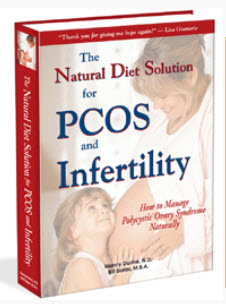
If you have just purchased the e-book, please read this page and then print or save it so that you will have it on hand in case you have difficulty with the e-book and need assistance.

Possible E-Book Problems

Although rare, you could have a problem reading or printing your e-book. The most common reason that the e-book does not work is that you probably have an outdated or possibly a corrupted version of Adobe Acrobat Reader. Adobe Acrobat Reader is the software used to read and print your e-book. The e-book is designed to work with Adobe Acrobat Reader versions 3.0 through 7.0, although version 7.0 is your best choice.

Problems may include: failure of the text to display properly or text is unreadable; failure to print or prints garbage characters; "encryption" or "damaged file" warnings, or various error messages displayed at any point between downloading and viewing/printing the e-book.


If you think you may have an outdated version of Adobe Acrobat Reader, we strongly recommend that you upgrade to the newest and best version of the free Reader now, especially if you don't have a Windows XP computer. Click one of the links below:

Windows XP:
www.adobe.com/products/acrobat/readstep2.html

All Other Systems:
www.adobe.com/products/acrobat/readstep2_allversions.html

If for some reason you choose to not upgrade your Adobe Acrobat Reader software now, and if you encounter a problem with the e-book, please do the following to correct the problem:

1) Download the latest version of Adobe Acrobat Reader by clicking on a link in the box above.

2) After you have successfully installed the latest version of Adobe Acrobat Reader, restart your computer.

3) Double-click the e-book (pcosbook2.pdf) document to open it in Adobe Acrobat Reader.

4) If you wish to print all or part of the e-book, click "File", then "Print".

If you still have a problem, please contact us, using the form at the bottom of this page.


Unable to Download the E-Book

In some situations, you may not be able to download the e-book from our website to your computer. Possible reasons might include: a computer crash, or operating system or web browser problem, or an Internet interruption that prevents you from downloading the e-book.

If you have lost the e-book download page or have other downloading problems, please scroll down to the bottom of this page and contact us. By "downloading", we mean that a copy of the e-book is transferred from our website to your computer.


Unclear about the Distinction between an "E-book" and a Printed Book

An "e-book" is a book in electronic format that it is downloaded from our website to your computer. You can view the e-book on your computer screen, or you can print it on your computer printer. An e-book is not a pre-printed book, such as a paperback book.


Problems with an Older Computer

Unless you have an extremely old computer, you should certainly have room on your hard disk to store the e-book. The size of the e-book is 4.3 megabytes, which is not large by today's standards.

A more serious issue is the software required for reading the e-book, which is called Adobe Acrobat Reader. An older computer may not have Adobe Acrobat Reader, or it may have an outdated version. If so, you cannot read the e-book until you have successfully downloaded Acrobat Reader.

The newer Adobe Acrobat Reader is quite a large file, considerably larger than the e-book. Even so, there should be room on your disk to store it. But if your computer is more than 15 years old, it's possible you would not have room. You could try to download Acrobat Reader and see what happens.

Perhaps the greatest frustration with an older computer is the slow modem connection and slow hardware and system software, all of which means downloading the e-book and Acrobat Reader could take quite a long time.


Links to Meal Plans and Recipes Don't Work

Regardless of the version of Adobe Acrobat Reader you have, you should be able to easily go to all the diet plans and recipes. You can do this by clicking on the "Bookmarks" tab along the left column of the displayed e-book. That will open a left-hand pane in which are displayed all the chapters. Scroll down to 13.1 Daily Meal Plans. If you don't see the meal plans displayed underneath, click on the small "+" sign to the left of the 13.1. The "+" will turn into a "-" and all the meal plans will be displayed underneath.

You can use the same technique for the Recipes (chapter 13.2).


"I Can't Find the E-Book on My Computer"

If you think you have successfully downloaded the e-book, then the e-book is probably somewhere on your hard disk.

To find it on a Windows computer, open a Windows Explorer window. Select the "Disk (C:)" icon.

Press the "F3" key at the top of your keyboard.

In the blue left hand pane, click on "All files and folders"

In the left hand pale blue pane, notice the first entry box that says "All or part of the file name". In that box, type in "pcosbook2.pdf". Then click the "Search" button at the bottom of the pale blue pane.

If the e-book is on your computer, its location will be displayed in the right-hand pane. You can either double-click the "pcosbook2.pdf" to open the e-book, or go to the folder in which it is stored and open it there.

If the right hand pane is empty after the search is completed, then the e-book is not on your disk.


How to Contact Us for Help

Please Tell Us Your Concern in the Form Below
Please note that all fields followed by an asterisk must be filled in.
*
Name:*
Email:*
Confirm Email:

Please enter the word that you see below.